Importing Market Data
Bring your own quotes into the catalog — one row at a time or a whole CSV. Imported values sit alongside the public-feed data, tagged with their source so it's always clear what's yours. Every row is reported back individually, so a partial import tells you exactly which rows landed and which didn't.
Opening the Import screen
Go to Market Data → Import. There are two tabs: Manual entry (an editable table of rows) and CSV upload (a file). Both write to the same shared catalog and both produce the same per-row report.
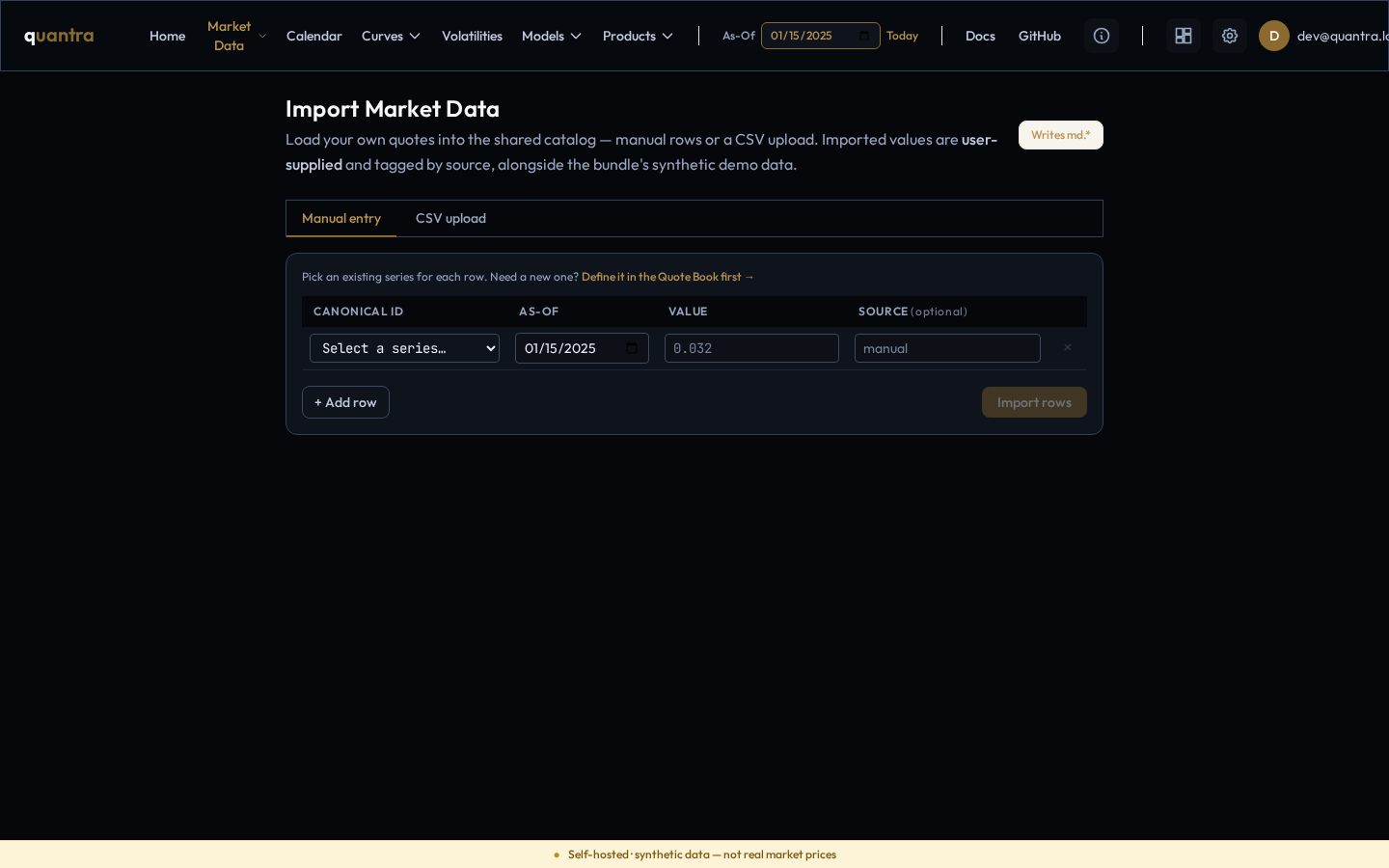
Manual entry
Add one row per value:
- Canonical ID — pick the series from the dropdown. Only series that already exist appear here.
- As-Of — the date this value applies to (defaults to the header's As-Of; format
YYYY-MM-DD). - Value — the numeric quote.
- Source (optional) — a free-text tag for provenance (e.g.
manual, a desk name).
Use + Add row for more values, then click Import rows. Rows that fail basic checks (missing id, a non-numeric value, a bad date) are flagged before submit; the server has the final say and returns a per-row result.
CSV upload
Switch to the CSV upload tab and choose a .csv file. The expected columns are:
canonical_id, as_of (YYYY-MM-DD), value[, source, meta_json]
A header row is optional — it's auto-detected. source and meta_json are optional
per row. Rows imported via CSV are tagged with source csv unless you supply your own. Example:
canonical_id,as_of,value,source
USD.MYDESK.5Y,2025-01-15,0.0412,mydesk
USD.MYDESK.10Y,2025-01-15,0.0435,mydesk
Series must exist first
The importer only adds values to series that already exist. If a row names a series that isn't defined, that row is rejected with a per-row error like series X does not exist — create it first. Import never silently creates a new series.
So if you're bringing in a brand-new series, define it first in the Quote Book with + New series (set its canonical id, class, currency, and field), then come back and import its values. The manual-entry tab links straight to this — “Need a new one? Define it in the Quote Book first →”.
Reading the result
After you import, a report appears. Because per-row failures are returned softly, a successful request doesn't mean every row landed — always read the report:
- Imported — how many rows were written.
- Skipped — how many were not.
- Source — the provenance tag applied (
manualorcsv). - Errors — a per-row list with the row number and the reason (e.g. unknown series, non-numeric value), so you can fix just those rows and re-import.
Where imported data goes
Imported values land in the shared market-data catalog next to the public-feed data, each tagged by
source. They show up immediately in the Quote Book (with a
manual/csv chip), can be charted in the Time Series Lab, and are resolved into
curves and prices exactly like any other quote — as of your As-Of date.
Honesty by design. The source tag is never dropped. That's how the app keeps you honest about which numbers came from the public feeds and which are quotes you supplied.